Everyone needs better Contact management
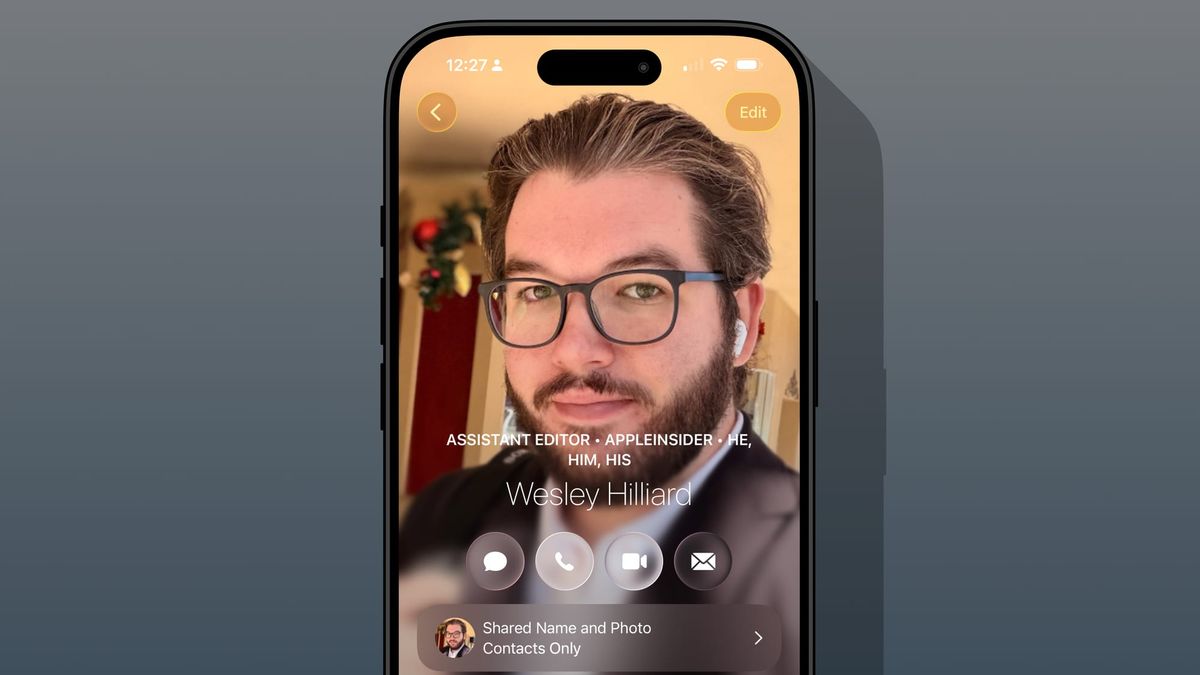
You've been doing this all wrong. Whether you're an adult that was around for the flip phone or a teen living through the Snapchat era, your Contacts list is one of the most important apps on the phone.
I'm going to speak regarding the iPhone Contacts app here, but a lot of this applies to Android too. I've seen some bad habits everywhere whenever I get a chance to see what someone's contacts list looks like.
One family member doesn't even have names, but instead "Larry down the street" or "John with tires." Others go more cutesy where the first name field is a series of emojis or just "dumb baby."
The funny thing is, Contacts provides a way for you to refer to anyone however you'd like with the Nickname field. You can even make it so the user's name is entirely replaced by that nickname.
The problem with a seemingly random set of contact cards is it can be very confusing for your on-device intelligence. That's becoming more and more important as Apple Intelligence becomes more involved and proactive on your device.
First, here's why this matters at all.
The brains of your iPhone
Apple hasn't always embraced device customization. However, one of the core features of iPhone that gave the users the most control has always been the Contacts app.
It has always been one of the few places that the user can share details about themselves and their lives. Birthdays, anniversaries, relationships, photos, and more. Every detail matters.
For example, go to the Photos app and select a photo with someone you know. Swipe up to reveal the details pane and you'll see little circles at the bottom left of the photo that represent detected faces. Tap a person's face and type in their name from Contacts to pair this person's face with Contacts.
Now that the two are linked, some very interesting things can happen. First, if you have that Contact's birthday filled out, then you will see a new Photos Memory each year on their birthday. They'll also be featured in the Photos widget around that day.
The relationship goes the other way too. The Contacts app will now populate the photo selection area with photos of that person from the Photos app.
If you've labeled who your family is, Photos then can create curated memories based on when you're with family. Search "family" and get all photos with your family. Search "siblings" and that works too. But only if you've got the Contacts filled out properly.
If you've got the person's address in their Contacts, Photos will generate memories like "years at Mom's house."
The Photos and Contacts relationship is the strongest in Apple's ecosystem, but these things go much further and will only spread with time.
Having a properly named contact card that has a face labeled in Photos will mean your HomeKit Secure Video cameras can identify who just rang the doorbell. Siri will announce "Sarah just rang the doorbell" or a notification might say "someone that looks like Brandon is in the backyard."
Calendar also benefits from a complete Contacts app. Birthdays show up without you having to add them, for example.
There are a lot of connecting points in iOS that are going to be a foundation feature of the new Siri with Apple Foundation Models. You owe it to yourself to work on your Contacts database and your Photos face labels to ensure Siri knows everything it can.
And don't worry, this is all private, secure, and encrypted. Apple goes to extra lengths to protect Photos face data as well.
Your contact card
Apple Contacts keeps your personal contact card at the top of the Contacts app. There are a lot of controls within the app that are otherwise found in Settings, like choosing to share your contact name and photo with other contacts that have your information.
It is important that you have your first name, last name, phone, email, and home address at the least. Apple even lets you connect your Game Center accounts and various social media to your contact card. I've even added my relationship to various other contacts like my mother and my wife.
Another nice touch is the ability to add pronouns. Do this by scrolling to the bottom and selecting "Add Field." This is where that all-important nickname field can be found as well.
One last important detail in your personal contact card – the photo. Many of you might even have a photo already, but it's shown in this little circle icon. That means you're out of date by a couple of years in terms of contact card style.
Apple introduced something called Contact Posters that allow your photo to take over the iPhone display when you are calling a person. The Contact poster is also shared when you've got the "Share name and photo" setting turned on. Go through and pick a good photo for your Poster, then edit the circle cutout "avatar" as well. The poster shows when you call, the avatar is what is used for email and Messages.
Everyone else
I've made it a habit to fill out every contact field that I can reasonably fill out when getting a person's contacts for the first time. Name Drop makes this fairly easy, as you choose exactly what fields you're sharing, and you get their name, number, and photo with a simple tap of your iPhones.
If you'd like to have a silly nickname show up instead of their real name, just use the Nickname field. Go nuts with emoji and expletives, but at least the actual first and last name are still there.
If you'd like to only see the Nickname in places like Messages, go to Settings, Apps, Contacts, Short Name. Toggle on "Short Name" and pick "First Name Only" then toggle on "Prefer Nicknames."
Use that notes field. Write down details like things that person likes or gift ideas. When you learn their birthday or anniversary, go add it to their contact card.
If you've accumulated a lot of contacts, the ability to sort them into Lists is the next thing you need to take advantage of. I use lists like Family, Friends, Businesses, Work, and Mutuals to keep things organized. Keep in mind too that you can have a single contact in multiple lists.
Take the time to put a contact photo for everyone, at a minimum the circle avatar. It's even better if you can get the Contact Poster set up, at the least for your non-business contacts.
There might be a lot of work up front for those of you that have terrible contact databases, but take the time one day to organize it, and it's simple to maintain from then on. You'll appreciate the work in the long run.
Also, I recommend if you've got multiple contact databases across Google, Apple, and Microsoft to consolidate them. Pull in all the contacts you need into Apple Contacts, then turn off contact syncing from those other services.
Managing multiple databases and their feature sets can get convoluted. Obviously, some of you can't abandon your work contact list in Gmail, but maybe try keeping only one database on your iPhone and keep that work one isolated to a work machine or the web.
Users should take advantage of every database Apple lets them directly interact with. The other significant database is Apple Health, but more on that at another time.